

Reconciling Open Jobs and Unpaid Invoices During FSM Migration
Switching field service management software should feel like an upgrade. Too often, it feels like a heist. You export your data, hit import, and cross your fingers. Then go-live arrives. A tech opens a work order that shows the wrong parts. The office chases an invoice that already got paid. A customer gets billed twice. Suddenly, your shiny new platform looks like a liability.
Software is rarely the problem. It is the handoff. Open jobs and unpaid invoices contain “live” data. Data continues to move when you try to move it. Misaligned timing will lose work in the shuffle. This migration checklist helps you through a practical field service software migration by reconciling both open jobs and unpaid invoices. This migration checklist will also assist in FSM migration to ensure that no work gets lost, double-billed, or forgotten.
Why Open Jobs and Unpaid Invoices Break During FSM Migration
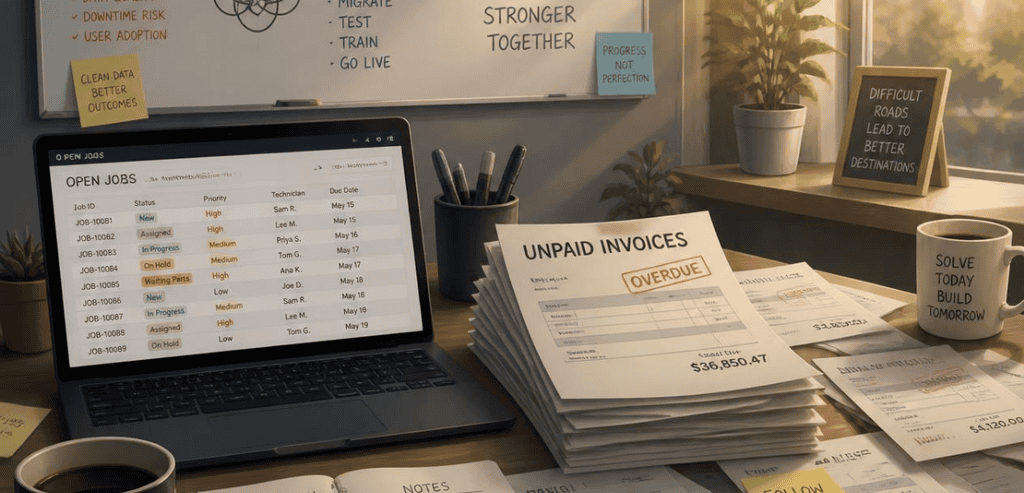
Historical data is easy. A job completed and paid two years ago never changes. You can archive it, import it, or leave it behind, and nothing downstream cares.
An active job could get rescheduled tomorrow. An unpaid invoice could get paid today. Each of these examples has the potential to impact scheduling, dispatch, inventory, and accounting. Act on the data at the wrong time, and the balance is broken.
When financial data moves poorly, the negative effects are evident quickly and show up in your records. Public companies have disclosed significant control failures within their financial systems after they implemented ERPs that affected the invoicing and billing process. Smaller service companies experience the same effects; for example, an aging accounts receivable report that no longer matches, or a payment posted to an invoice that was not due. For this reason, active jobs and invoices must have their own reconciliation rather than being lumped into the mass data transfer.
Start With a Clean Cutover Date
Everything begins with one decision: the cutover date. This is the exact moment your old system stops being the source of truth, and your new system takes over.
Defend a single date. Everything before the date occurs in the old system as either history or as the records that were migrated. Everything after the date occurs in the new system. There must be no overlap and no gap. Overlap causes duplicates, and gaps cause lost revenue.
The best option is slower weeks. Choose a week with reduced job volume to give your staff bandwidth to handle the extra work. Avoid month-end and quarter-end because your accountant will be extremely busy at that time. Ensure each of your dispatchers, techs, and bookkeeping staff knows the date well in advance. The time the switch occurs must be known to all staff to eliminate ambiguity.
The starting balance is the next item to address. With a full FSM migration, the new system should have the fully reconciled opening balance that is the same as the final closing balance of the old system. The two numbers must match on the first day for them to ever match. Address any number discrepancies before disabling the old system.
Building Your Field Service Software Migration Checklist
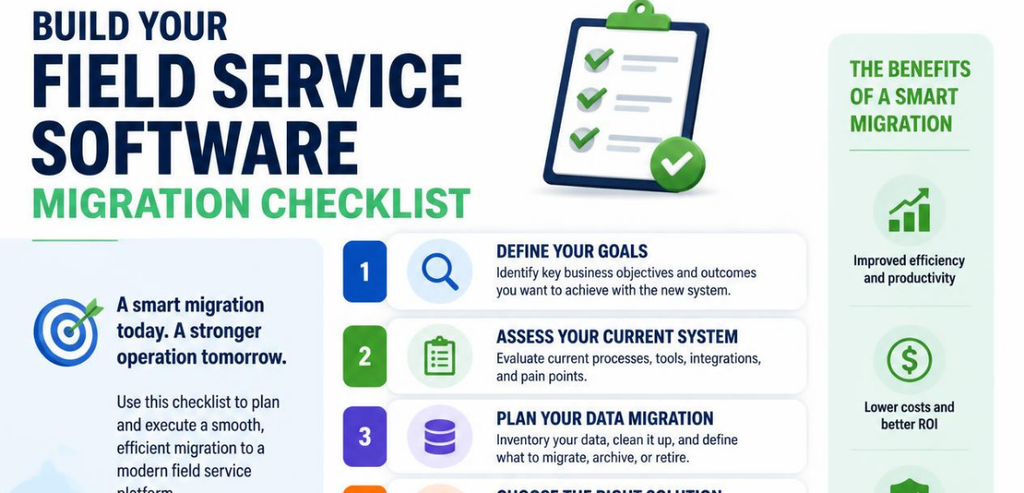
A good field service software migration checklist treats open jobs and unpaid invoices as two connected problems. Handle them in order, and the reconciliation almost takes care of itself.
Inventory Every Open Job
Before you touch an export tool, pull a complete list of open work orders as of your cutover date. Freeze it. Print it or save it as a dated file so you have a snapshot that cannot change under you.
For every open job, write down the customer, the site address, the assigned technician, the scheduled date, parts used, labor hours logged, and the status of the job. Once you have done this for all open jobs, write down the job status as well. A job status of 90 per cent completed requires a different approach from something that has not even been started. This record becomes your baseline for reconciliation. Post-implementation, every job recorded in the new system must correlate to a record on this list.
Map Your Unpaid Invoices and AR Aging
Next, run your accounts receivable aging report on the cutover date and lock it. This report is your financial baseline for unpaid invoices. It tells you exactly who owes what, and how overdue each balance is.
For each open invoice, match it to the job and customer. Learn what can go wrong and how it impacts accounts receivable (AR). For example, you’ll have an aging report that shows the status of invoices that have been outstanding. A payment applied to the wrong invoice will provide you with false numbers. A refund or void that is processed in your accounting software may not flow back to your FSM. Find these discrepancies now because you can still have both systems open for a comparison.
Decide What Gets Imported vs. Re-Entered
Here is the counterintuitive part. Not everything should be imported. Bulk CSV import handles completed history well. It handles active work poorly.
Cutover time allows us to re-enter open work orders by hand. Usually, we only have a few orders to re-enter, and that gives us the time to ensure the accuracy of each record. Open work orders must be assessed for the part, the labor, and the order status. A CSV import lacks the capacity for such assessments. Open invoices also come with some level of risk depending on the overall volume and how aligned the two systems are. If there is even the slightest doubt, re-enter the active records, then import the dead ones.
How to Reconcile Open Jobs Without Losing Work
Once cutover happens, reconciliation is a matching exercise. Take your frozen open-job snapshot and walk it against the new system, one work order at a time.
Confirm three things for each job. First, ensure that the job is present in the new system. Second, ensure that the parts and labor listed on the job were carried to the new system. Third, ensure that the schedule and the technician assigned to the job are in the new system. If a job is not present, re-enter the job from your snapshot. If the details on a job have shifted, correct the details against your baseline, not your memory.
Instruct technicians on what they may encounter after go-live. During the first days after the new system is operational, they may see jobs that have a new appearance. Ask them to report anything that looks off. Avoid working around issues that may cause them to “fix” a discrepancy in the field. This can mask a reconciliation issue that can go undetected for weeks.
Reconciling Unpaid Invoices and Accounting Sync

Unpaid invoices carry the highest financial stakes, so treat the accounting connection with extra care. Most field service platforms sync with an accounting system, and that sync is where double-billing hides.
To test reconciliation, process a small batch of invoices instead of one large batch. If one (or a few) invoices post to the correct accounts and customers and do not generate duplicates, consider the batch to have passed reconciliation. Only consider the full volume of the sync to be trusted after such a post-reconciliation check.
The safest technical guardrails measure the invoice push for idempotency. This means that, for each invoice pushed, a unique key like a work order ID is associated with that push, such that the same invoice is never charged twice. If this feature is supported by your platform or integration partner, enable it. This would prevent the well-known issue of duplicate bills during a migration that is caused by transient error duplications.
QuickBooks
QuickBooks helps hundreds of thousands of service businesses in the US, so it is worth explaining its impact. QuickBooks Online and QuickBooks Desktop have very different database structures. Because of this, the QuickBooks sync behaves differently for each. With Online, QuickBooks uses a cloud API, which supports synchronization in real time and one direction. With Desktop, the sync still requires mapping and is more hands-on.
One common failure is worth mentioning now. Many adjustments made in QuickBooks (refunds, voids) do not go back to the FSM. Six months later, the dispatcher believes the customer is current, while the back office has the record showing the customer is 90 days delinquent. The job goes out. To avoid this, be clear and detail-oriented when mapping your chart of accounts to your FSM service categories during the transition. Intuit provides a good resource to help you understand how to clean your records and how to reconcile your accounts to prepare you for the transition of systems.
Run Both Systems in Parallel Before Go-Live
Do not flip the switch cold. Run the old and new systems side by side for a short window, ideally a week or two. Parallel processing lets you catch discrepancies in real time, while both sources of truth are still available to compare.
Process a small number of real jobs and invoices through the new system and continue to use the old system at the same time. Check the results and see if the invoice totals match. Also check if the same job shows the same parts in both systems. The reason for parallel running is that it finds errors in the mapping of the data before customers pay for the service.
Keep the parallel running as short as possible, though. Long periods of parallel running will increase the chance of duplicate data again. A short parallel run of one to two weeks is OK. Longer than that and it becomes a nightmare.
Validate, Document, and Close the Books
Reconciliation is not finished when the data moves. It is finished when the numbers agree.
While the old system is still up, tie out the financials. Check the receivables aging, balance totals in the trial balance, and account balances. Check for gaps. A lot of small gaps might mean there’s a mapping issue affecting a large number of records, so check for gaps instead of rounding. Ramp has a good resource for checking figures on both sides of a cutover for accounting data migration.
Document everything. Document what you moved, the mapping decisions you made, the validations you performed, and any adjustments you made manually. This helps with auditing and tracing issues back to their origin. To better understand the migration of customer records, work orders, asset history, and financials, this data migration guide is very useful.
Confirm how long you must keep the old system up. A lot of businesses must keep the old system up due to the need for the legacy system to fulfill certain tasks for audits, taxes, or other regulations. Talk to your accountant to confirm how long you should keep things up.
Conclusion
An FSM migration lives or dies on the handoff of active work. Completed history is forgiving. Open jobs and unpaid invoices are not, because they are still in motion when you move them.
The formula is simple, even if the execution takes discipline. Freeze a snapshot of open jobs and a snapshot of unpaid invoices. Set one clean cutover date with a reconciled opening balance. Re-enter active records by hand, import the dead ones, and lean on an idempotent invoice sync so nothing double-bills. Run both systems in parallel just long enough to catch errors, then validate the financials to the dollar and document the whole thing.
Follow that field service software migration checklist and go-live stops being a gamble. Your technicians open jobs that make sense. Your invoices land once. And your new platform starts doing what you bought it for, instead of cleaning up after itself.
Frequently Asked Questions
Should I Import Open Work Orders or Re-Enter Them Manually During FSM Migration?
For most businesses, re-enter open work orders manually at cutover. There are usually few enough active jobs to handle by hand, and manual entry lets you verify parts, labor, and status one job at a time. Bulk CSV import is better reserved for completed, historical jobs that will not change.
How Do I Avoid Double-Billing Customers During the Migration?
Set a single clean cutover date so no invoice exists in both systems, and make your invoice sync idempotent by tying each push to a unique key such as the work order ID. Test the accounting sync with a small pilot batch of invoices before go-live, and confirm none of them are duplicates.
What Is a Cutover Date and Why Does It Matter So Much?
The cutover date is the exact moment your old system stops being the source of truth, and your new one takes over. Everything before it stays in the old system, and everything after goes into the new one. A clear cutover date, paired with a reconciled opening balance, prevents both duplicate transactions and missing revenue.
How Long Should I Run the Old and New FSM Systems in Parallel?
Roughly one to two weeks is a healthy window. That is long enough to compare real jobs and invoices across both systems and catch mapping errors before they reach a customer. Running much longer reintroduces the duplication risk you are trying to eliminate.